
1. About this platform
This is the officer portal for the ECOWAS Brown Card Scheme register of cover — the system that member countries, National Bureaux and insurers use to keep every motor policy and Brown Card in one place, issue and validate Brown Cards, and give regulators oversight of the whole scheme. This deployment is operated by ECOWAS Brown Card PS.
The platform is role-based: what you can see and do depends on your role and your institution. This guide covers the roles and operations available on this deployment — your own workspace only ever shows the parts your role is permitted to use. Where a screen below is missing for you, your role does not carry that permission, or the feature is not enabled here.
2. Getting started
- Sign in with the account your organisation gave you. Where the deployment runs one sign-in for each audience, the login page asks where you work — Bureaux and Secretariat, Insurers and brokers or Public authorities — and your organisation’s sign-in asks for your password and, for roles that use it, a code from your authenticator app. Where the deployment uses passwords here, you enter your work email and password on the login page. Your session is held in a secure, http-only cookie.
- Accounts are created for you by an administrator at your institution. You receive an email with a link to set your password — and to add an authenticator app when your role signs in with two-factor.
- Moving between modules — signed in, the avatar menu opens the claims portal through the same sign-in, with no password to type again.
- Forgotten password — use “Forgot your password?” on your organisation’s sign-in page, or on this login page where you sign in with a password here; a reset link is emailed to you. A locked-out account is re-enabled by your institution admin.
- Security & language — from the avatar menu → Profile you set your interface language (English, French, Portuguese). Your password and two-factor sign-in are kept where you sign in: Profile links to your account at your organisation’s sign-in, or holds the forms to change them here.
- Go to the portal login page (your administrator sends you the link).
- Choose where you work, or enter your work email and password.
- If your role signs in with two-factor, enter the one-time code from your authenticator app.
- You arrive at your dashboard — the home workspace for your role.
4. Institutions & how they fit together
The scheme is a hierarchy of institutions, each isolated from its peers:
- ECOWAS Secretariat — the scheme apex. Oversees every institution, sets the Brown Card fee and scheme settings, and reads the whole scheme’s register.
- National Commission (regulator, where present) — supervises the insurers in its country and publishes the premium tariff and the certificate design.
- National Bureau — the Brown Card authority for a country. Issues and validates Brown Cards and oversees its member insurers.
- Insurance company — underwrites policies, onboards customers and keeps its policies on the register. Each insurer sees its own data only.
Visibility follows the tree, and data flows upward. You read your own institution and everything beneath it, never institutions beside you. An insurance company runs in its own deployment; its policy data reaches the ECOWAS Secretariat only by being relayed up through the national commission — the secretariat sees scheme-wide oversight data without operating the commissions or insurers itself. Writing is always own-institution only — an administrator creates the institutions directly below them and their first admin, who then manages their own staff.
5. Every role at a glance
Roles are scheme-neutral and grouped by institution. Each carries a fixed ceiling of permissions; an administrator can narrow a person further with a role profile.
Secretariat (apex oversight)
- Platform Admin platform — creates the top-level institutions (the secretariat, national commissions and bureaux) and assigns each its first administrator.
- Secretariat Admin secretariat — provisions national commissions and bureaux, manages secretariat staff, sets the Brown Card fee and scheme settings, and allocates digital Brown Card stock.
- Secretariat Analyst secretariat — scheme-wide oversight: reads the relayed registers and the audit log.
- Secretariat Auditor secretariat — read-and-attest: inspects the registers and the audit log.
6. Administration & user management
Who: Platform Admin, and every institution’s Admin role.
- Create institutions — the Platform Admin creates the top-level institutions; each institution admin then registers the institutions directly beneath them and assigns each its first admin.
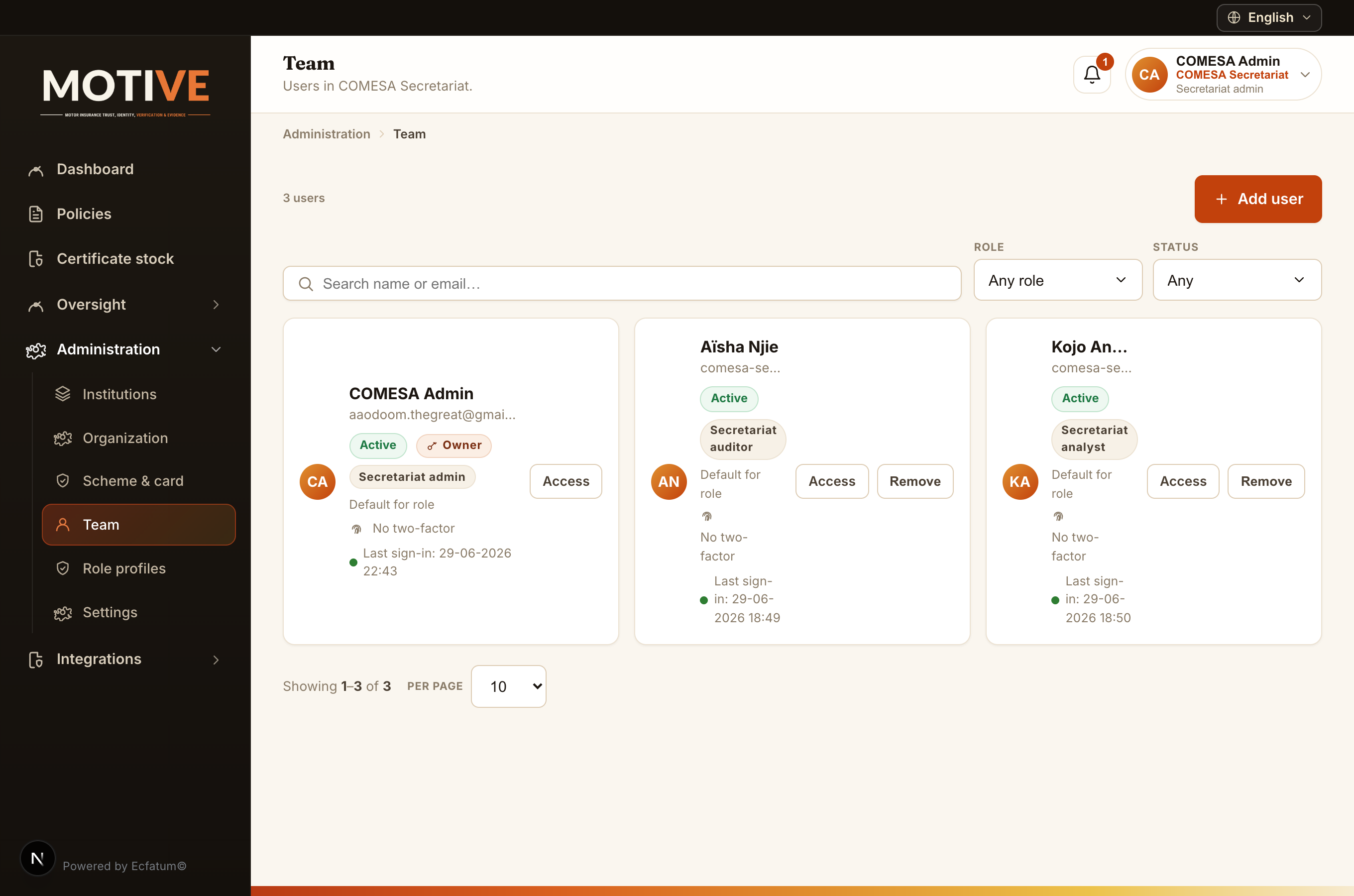
- Manage your team (Administration → Team) — invite staff, assign roles, send the set-up email again and remove leavers. You only ever manage your own institution’s users.
- Break-glass accounts — the deployment owner’s administrators keep a few accounts that sign in with a password at /login/local while the sign-in service is unavailable. Each such sign-in appears under Administration → Single sign-on until another administrator reviews it. That administrator, like the one who grants an account, has been an administrator for at least 24 hours, and no line of appointments joins them to the account’s holder; each new administrator of the owner’s institution is announced to the others by email and in their bell.
- Role profiles — define a narrowed set of permissions and apply it to a person, so you can grant less than a role’s full ceiling.
- Institution settings — your name, logo, branding, contact details, default language, two-factor (SMS) provider and AI/detection settings.
- Open Administration → Team in the left sidebar.
- Click Add user (top right).
- Enter the person’s name, work email and role, then save.
- They receive an email with a link to set their password. While the sign-in service is unreachable the Team page shows Sign-in pending; the platform keeps trying and sends it as soon as it answers.
- To revoke access later, choose Remove in their card’s ⋯ menu and confirm it — with your password, or by signing in again at your organisation’s sign-in. Their account there is disabled and its sessions end.
7. Scheme & Brown Card configuration
Who: Secretariat Admin.
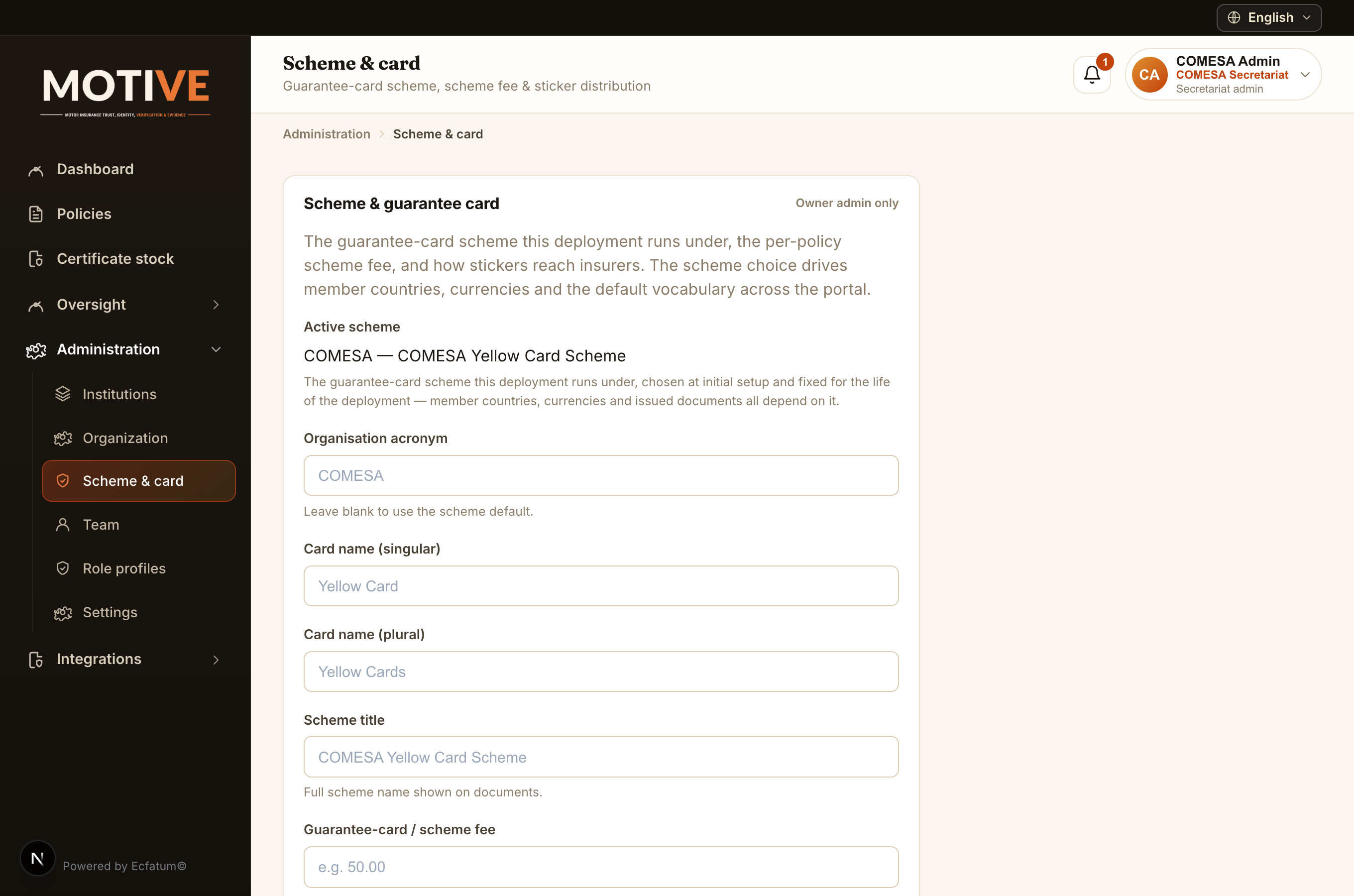
- Scheme & card — confirm the active scheme, set the Brown Card / scheme fee, and override the organisation, card and scheme branding shown on certificates and across the portal.
- Open Administration → Scheme & card.
- Confirm the active scheme shown at the top.
- Set the Brown Card / scheme fee and, if needed, the organisation acronym, card name and scheme title.
- Click Save — the new fee and branding apply across certificates and the portal.
8. Certificate stock
Who: Secretariat Admin.
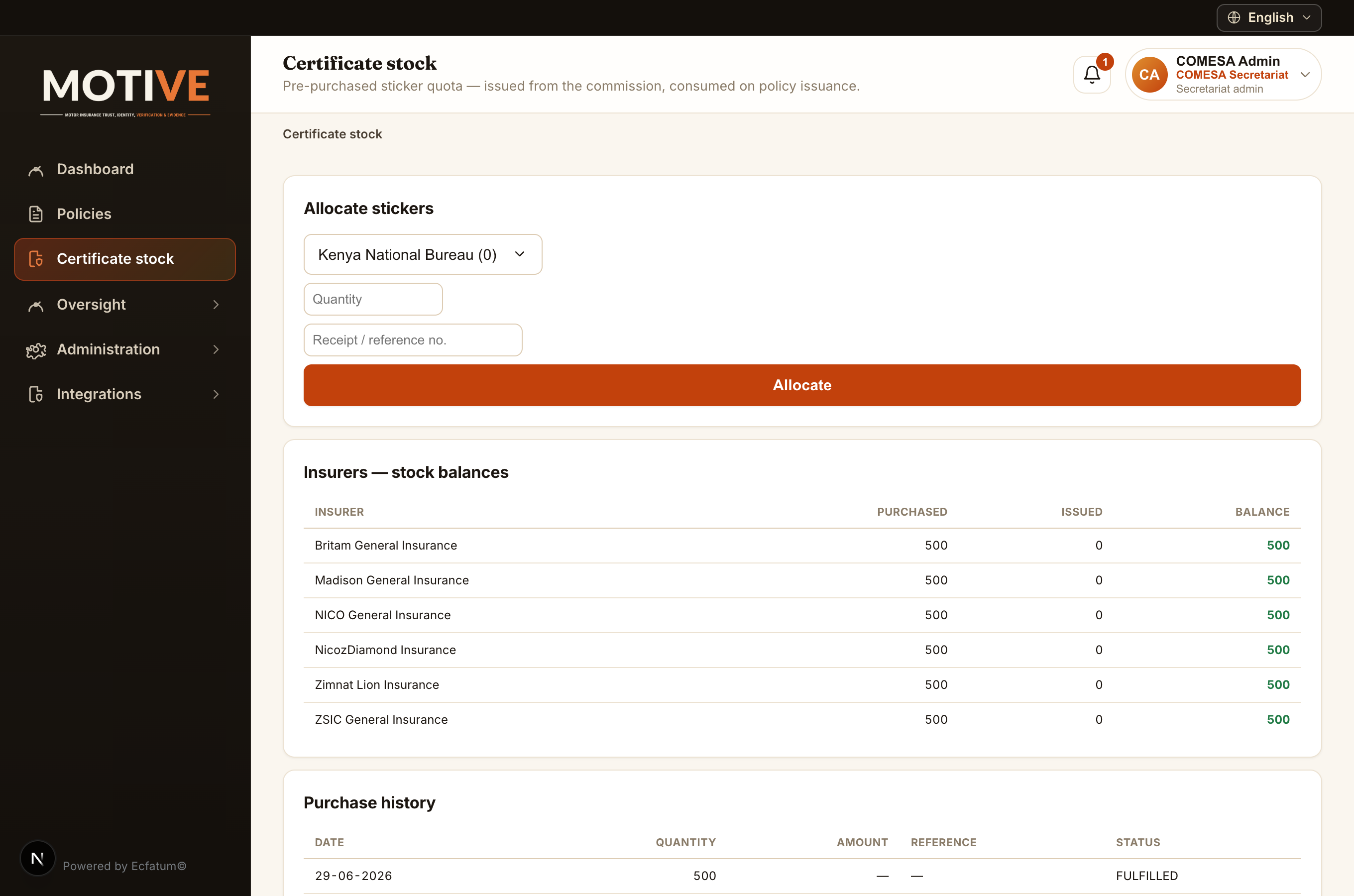
- Allocate digital stock — issue Brown Card certificate stock down to the national commissions and bureaux in the scheme.
9. The register: policies, vehicles and cover
Who: every operational role.
- Policies — every policy your institution and its members hold, with its insurer, insured, cover and term. Search by policy, Brown Card, certificate or chassis number, registration or policyholder: a search looks through every date and status. Filter by date, status, cover and institution.
- Vehicles — search by registration, chassis, Brown Card or policy number, make, model or policyholder; open a vehicle to see every policy the register holds for it and the Brown Card each carries.
- Frontier check (bureau staff) — check any Brown Card from any member state by its number, the policy number or the registration, and see whether it is valid, with the insurer, the issuing country and the vehicle to match it against. Every check is kept in Check history.
- Register policies (a bureau’s Brown Card officer and admin, for the bureau’s member insurers; an insurer’s admin, for itself) — register a policy and its Brown Card by hand, or many from a CSV file: download the template, Preview what each line would do, then confirm. A registered policy is issued its certificate, draws one unit of the insurer’s stock and is linked to its Brown Card and vehicle, as a pushed one is; the same file confirmed again registers nothing new. A Brown Card registered with its policy carries a number of the bureau’s own series, holds the vehicle’s days alone, and awaits validation by another officer of the bureau, as one issued under Brown Cards does.
- Report a suspected fake — under the answer of the public check and of a frontier check: say where you are and what you saw, and add a photo if you have one. The report reaches the bureau that issued the number and the General Secretariat.
- Cover lookup — another platform, such as a claims system, asks the register for the cover under a policy number, a Brown Card number or a registration, and gets the insurer, the term and whether the cover was in force on the day asked about.
- At a frontier, open Frontier check and type the Brown Card number or the registration.
- Open Vehicles and search for a registration.
- Open the vehicle to see its cover, newest first.
- A cover marked In force has a live status and a term that has not ended.
10. Oversight & audit
Who: analysts, supervisors, auditors and regulator viewers.
- Dashboard — the register at a glance: cover in force, by country and by type, and what was issued lately, with a date range for the period figure.
- Audit log → Activity — every change to policies, cards, users, roles, settings and integration keys, every export, push and sign-in: who, for which institution, to what, from which IP address, when, and whether it succeeded. Cancellations, card suspensions, reinstatements, revocations and replacements, key revocations and role changes carry an electronic signature. Entries are kept for at least 12 months and cannot be changed or deleted.
- Audit log → Integration requests — every request other systems made to the integration API: the institution, the key, what a lookup asked by, the outcome and the IP address.
- Member states — each member state’s participation in the scheme (joined, active, suspended, withdrawn) from a day, with its history and onboarding settings, recorded by the General Secretariat. From the first day a member state is suspended or withdrawn, no new Brown Card or certificate is issued for it; Brown Cards already issued keep verifying with their own status.
- Suspected fakes — the reports filed against the Brown Cards your institution answers for, and signals drawn from the checks: a Brown Card checked in two member states too close in time, repeated wrong codes, a number never issued, a withdrawn Brown Card still presented. Each is a flag to look at; record your conclusion on the report, and act on a Brown Card from its own page.
- On the Dashboard, set the date range to see what was issued in a period.
- Open Oversight → Audit log, choose a tab, set an actor, an action, an object, an outcome, an institution or a date range and press Apply. Open Details on a row to see everything recorded for it.
- Press Verify integrity to recompute every hash in your institutions’ chains and check every signature; a broken link is named by its institution, position and date. Verify inside a row checks that one event.
11. Data protection
Who: the Secretariat administrator, who keeps the compliance register for the data protection officer (DPO); the Secretariat auditor, who reads it; and each institution administrator, who answers data-subject requests about its own records.
- Compliance register — the Record of Processing Activities (purpose, lawful basis, data and data subjects, where the data comes from and goes, where it is stored, transfers and their basis, retention, security), the authorised access read live from the role grants, and the dated control checks with their evidence. Every change is kept with who made it and when, and the register exports as CSV and PDF for the PGS-BC audit.
- Find a person — searches the policies, cards and customer records your institution can see, by name, phone, email, ID number, policy, card or registration. The person’s page lists all of it, with a JSON and a CSV export.
- Data-subject requests — the request log: the day each request was received, its type, the day its answer is due (30 days later), its status and outcome. An open request past its due day is marked overdue.
- Open Data protection → Compliance register. On a new deployment, press Add the platform’s activities to start the record, then complete each entry.
- On Authorised access, press Export PDF for a dated copy of who holds which role; each export is kept with its SHA-256.
- To answer a request, open Find a person, search, and open the person. Press Log a request and choose its type and the day it was received.
- The institution that holds a record corrects it: choose the record and the field, write the correct value and the reason, and press Correct. A record a member insurer holds is routed to it: on the request, choose Route, the insurer and why; the insurer presses Take on and answers it.
- Close the request with Complete or Refuse, and the outcome.
12. Integrations & data relay
Who: institution Admins.
- Integration keys — issue API keys so a partner’s core system can push policies in, or so another platform can look cover up.
- Commission / Secretariat relay — insurers and bureaux relay their policies up the tree so regulators keep complete registers.
- Police, payments & registry — connect the police platform, the payment gateway, and national ID / business registries. Each institution’s data stays its own from end to end.
- Open Integrations → Integration keys and click Issue a new key.
- Name the key and choose the institution it is for (one of your member insurers / bureaux).
- Tick only the modules it may use — for policy relay, Policy ingest (`ingest:write`); for a claims platform looking cover up, Vehicle insurance status (`insurance:read`).
- Save and copy the key now — it is shown only once, then give it to that institution so it can push its data up to you.
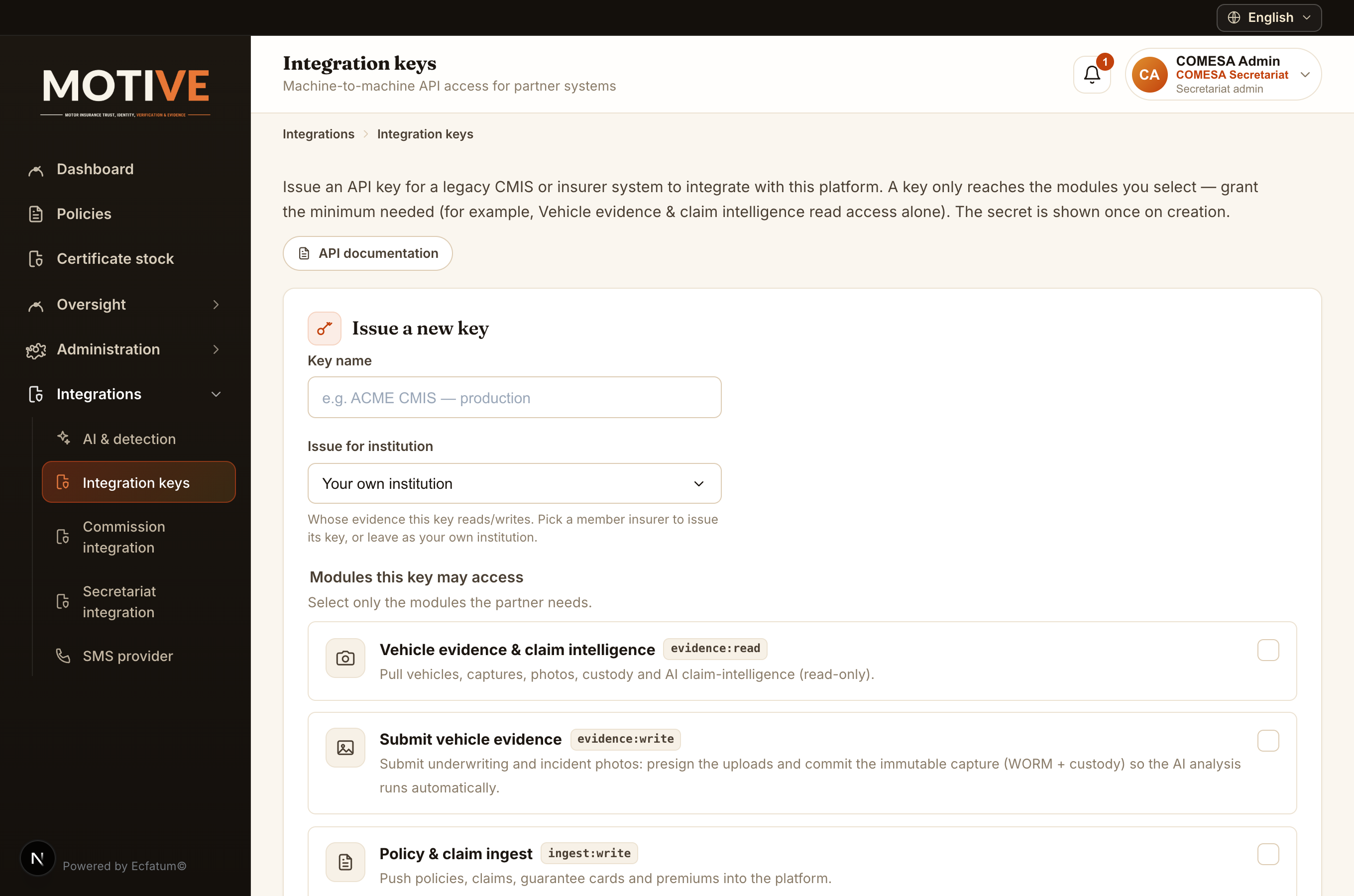
- Open Integrations → Integration keys and click API documentation (top of the page).
- The machine-readable API reference opens — it documents the push endpoints (policies, Brown Cards, premiums), the cover lookup, authentication and webhooks.
- Your developers integrate a standalone core system against it, authenticating with the CMIS ingest API key above.
13. Getting help
Help & support in the menu is where you raise a support ticket and follow it until it is closed. The support desk answers each ticket within the time its severity sets, day and night.
- Choose Report a problem in your account menu (top right) on the page where the problem appears. The ticket notes that page for the support desk.
- Give it a title, a category and the severity you believe it has; describe what you did and what happened, and attach a screenshot or a PDF if it helps.
- Select Raise ticket. You receive a reference (TKT-…) and the time it was raised, and the ticket shows its deadlines for intervention and resolution.
- Follow the ticket in Help & support and reply on it there; you also receive an email at each step. When the support desk resolves it, check the fix: Accept and close, or Refuse the fix to send it back.
Severities and their response times: Critical — intervention within 2 hours, resolution within 8 hours; Major — 6 and 24 hours; Minor — 12 and 72 hours; Aesthetic — 24 hours, and resolution within 7 business days (Togo calendar). The support desk confirms the severity when it takes the ticket in hand and sets its level: N1 user support, N2 technical support, N3 developer support.
Your institution’s administrators see the tickets raised in their institution and its member institutions. The support desk is the administrators of the institution that runs the platform: they triage, assign and resolve tickets, and read the monthly Service levels. A ticket closes only once its fix is accepted, by the person who raised it or by a desk member other than the one who resolved it. Account problems (locked out, lost two-factor device) are resolved by your own institution’s admin from Administration → Team.